Editorial Notes & Pins — Content Types & Use Cases
Package:
@vicacha-devs/strapi-plugin-notes· Plugin ID:notes· Admin Workspace:/admin/plugins/notes
1. Content-Type Entities, Locations & Schemas (strapi.documents)
Section titled “1. Content-Type Entities, Locations & Schemas (strapi.documents)”Registers one internal polymorphic Collection Type (plugin::notes.note, content-manager.visible: false) that attaches editorial annotations to any Strapi Content Manager document via entitySlug (e.g., api::article.article), entityDocumentId, and entityLocale.
Where to Find Content-Type Entities in Strapi v5
Section titled “Where to Find Content-Type Entities in Strapi v5”- Content Manager Right Side Panel: Open any document in
/admin/content-manager/collection-types/...orsingle-types/...to view, create, and pin notes scoped to that document and locale - Global Notes Hub Workspace:
/admin/plugins/notes(centralized search, category filter, and pin board across all Content-Type entities) - Database Table:
notes(plugin::notes.notequeried viastrapi.documents('plugin::notes.note'))
plugin::notes.note — Notes
Section titled “plugin::notes.note — Notes”Editorial notes attached to Content Manager entity records
Kind:
collectionType· DB Table:notes· Admin Location: Internal (/admin/plugins/notes) · Draft & Publish:No· i18n:No
| Attribute | Strapi Type | Required | Constraints / Target |
|---|---|---|---|
title |
string |
Yes | max: 255 |
content |
text |
No | — |
category |
enumeration |
Yes | enum: general, todo, blocker, idea; default: "general" |
isPinned |
boolean |
No | default: false |
entityId |
integer |
No | — |
entityDocumentId |
string |
No | max: 128 |
entitySlug |
string |
Yes | max: 160 |
entityLocale |
string |
No | max: 32 |
createdByName |
string |
No | max: 120 |
updatedByName |
string |
No | max: 120 |
Strapi v5 Content Manager Integration (/admin/content-manager)
Section titled “Strapi v5 Content Manager Integration (/admin/content-manager)”Content Manager Sidebar Group:
Injected into All Content Manager Collection Types & Single Types (Right Sidebar)
Content Manager Entities & Components
Section titled “Content Manager Entities & Components”- Right-Sidebar Notes (
NOTES) Panel injected into every/admin/content-manager/collection-types/*and/admin/content-manager/single-types/*edit view - Internal Polymorphic Entity
plugin::notes.note(notestable, managed via Content Manager side panel &/admin/plugins/notes)
Why This Plugin Creates & Integrates Content Manager Entities
Section titled “Why This Plugin Creates & Integrates Content Manager Entities”@vicacha-devs/strapi-plugin-notes is purpose-built for the Strapi v5 Content Manager: it injects an interactive Notes panel directly into the right sidebar of every document edit view while keeping plugin::notes.note (content-manager.visible: false) out of the collection list to avoid cluttering the left sidebar:
- Works on Every
api::*andplugin::*Content Manager Entity: Attachgeneral,todo,blocker, orideanotes to anArticle & Course,Event,Donation Campaign,Islam Scripture Entry, orResource Publicationdirectly inside Content Manager. - Per-Locale (
Scope only to locale) or Cross-Locale Pinning: Scope a translation note specifically toen,es,ar, ortr, and pin critical blockers (Pin note to top) so editors see them immediately upon opening the entry.
How to Use in Strapi Content Manager (Step-by-Step)
Section titled “How to Use in Strapi Content Manager (Step-by-Step)”- Open Any Entry in Content Manager: Open any document in
/admin/content-manager/collection-types/...or/admin/content-manager/single-types/.... - Click
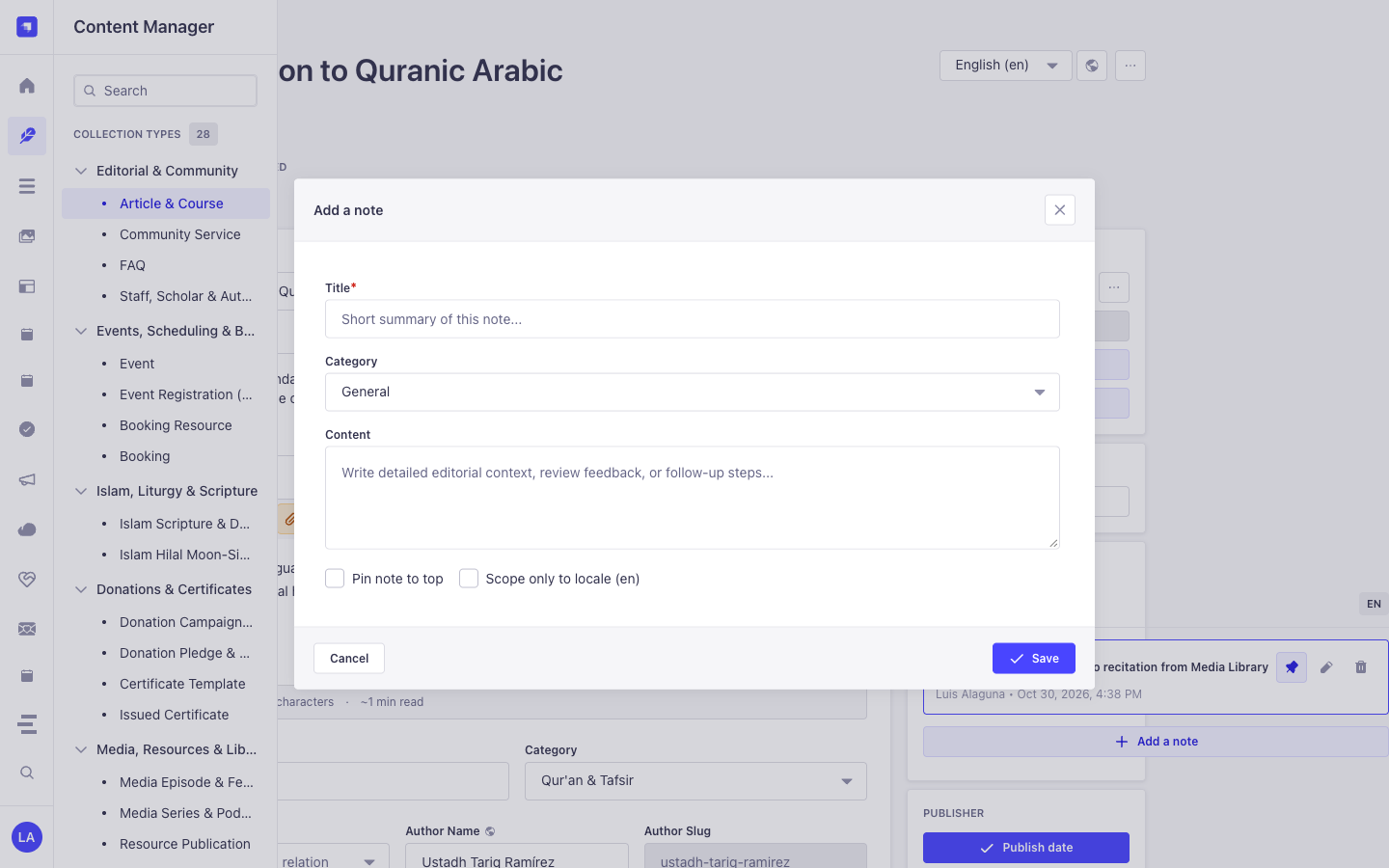
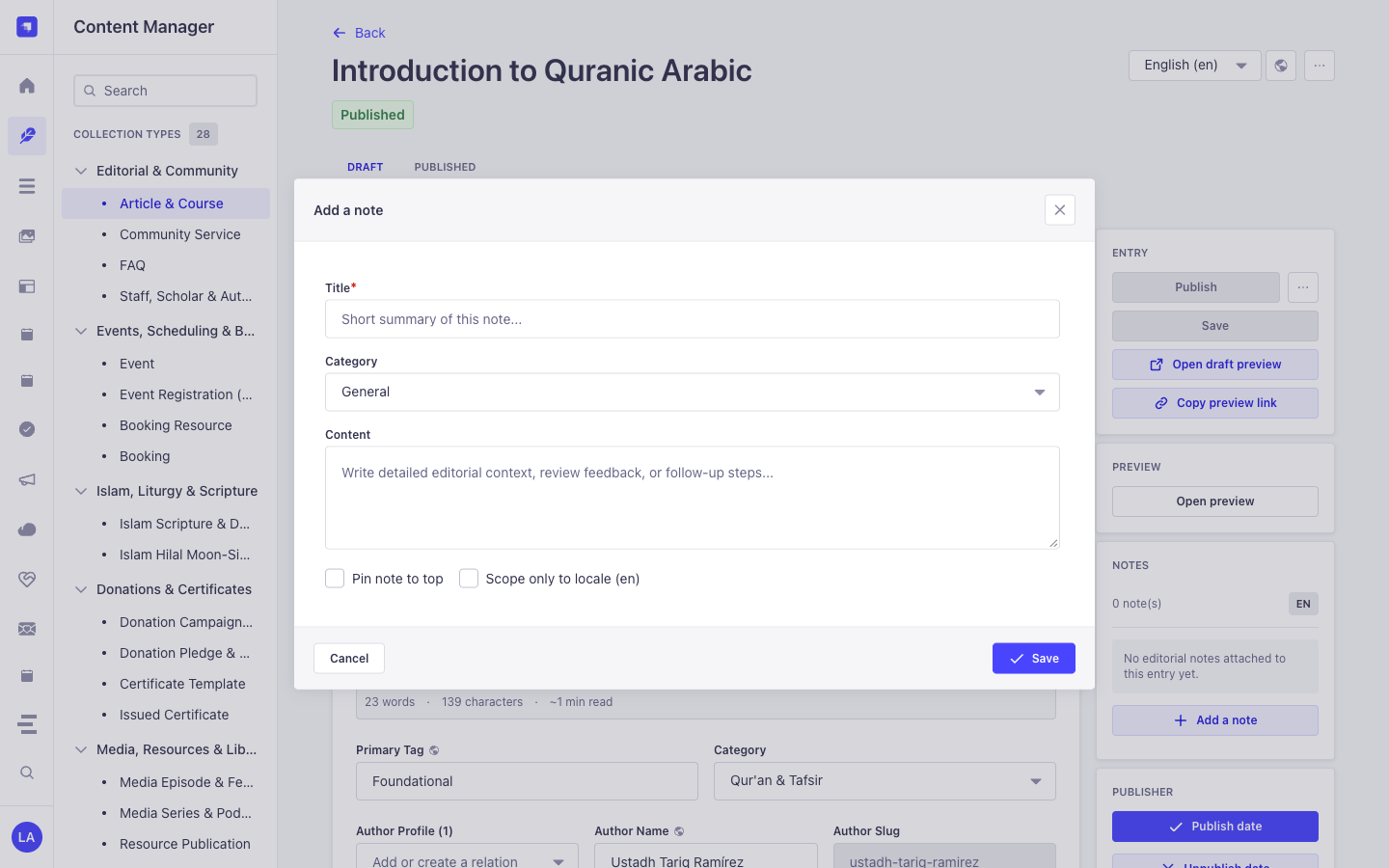
+ Add a note: In the right-hand sidebar under NOTES, click the button to open the note modal. - Set Category, Pin & Locale Scope: Enter
Title, selectCategory(General,To-Do,Blocker,Idea), write theContent, optionally checkPin note to toporScope only to locale, and click Save. - Triage Across All Entities: Visit
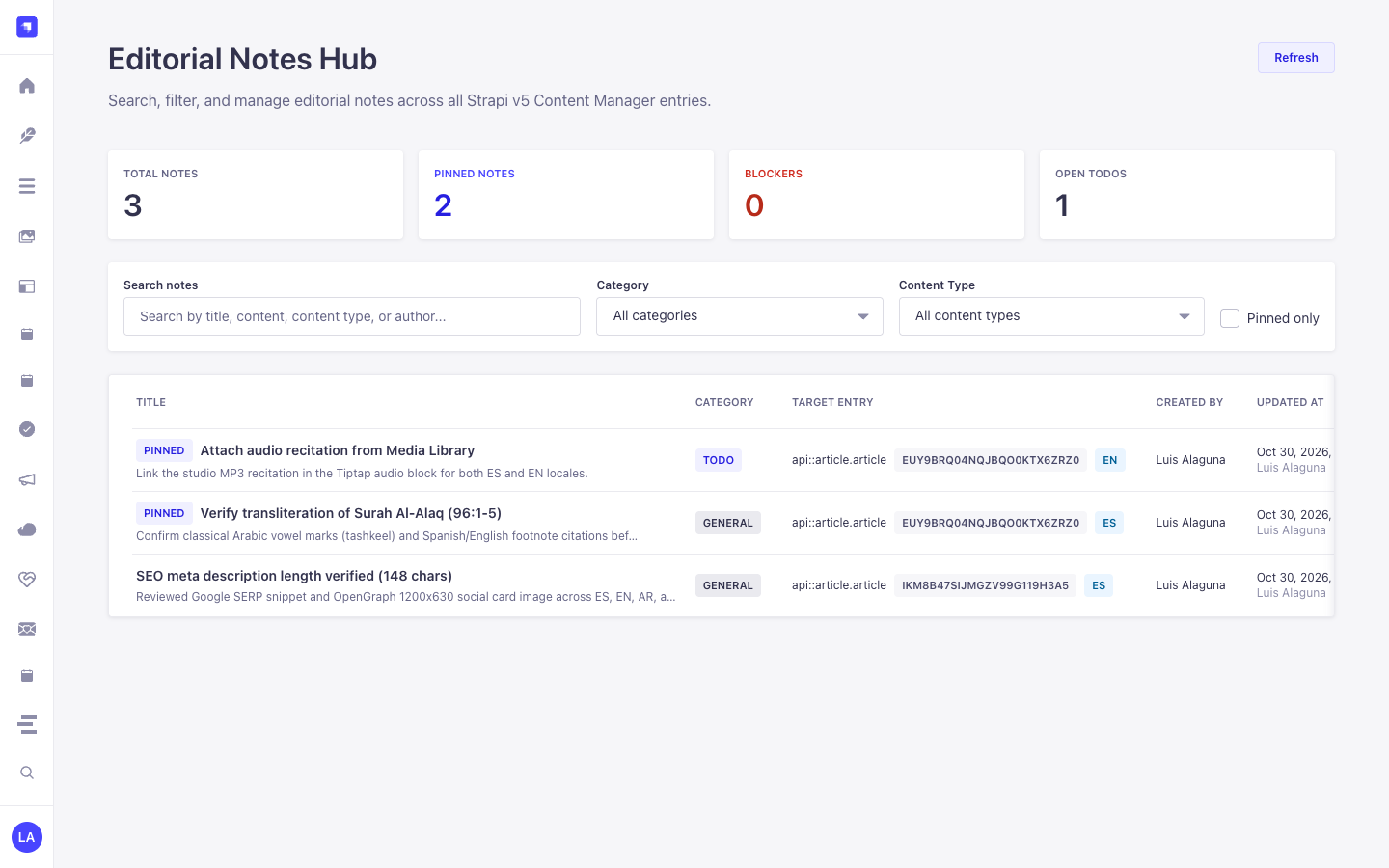
/admin/plugins/notes(Global Notes Hub) to filter all notes across the entire CMS and click any card to jump back into Content Manager.
Content Manager & Plugin Workspace Synchronization
Section titled “Content Manager & Plugin Workspace Synchronization”Content Manager Use Cases & Editorial Workflows
Section titled “Content Manager Use Cases & Editorial Workflows”Content Manager Use Case 1 — Attaching Locale-Scoped Translation & Scholar Review Notes
Section titled “Content Manager Use Case 1 — Attaching Locale-Scoped Translation & Scholar Review Notes”- Why & What it is for: Leave a
blockerortodoreview note on a course or scripture entry directly inside the Content Manager edit screen. - How to use in Content Manager: Open
/admin/content-manager/collection-types/api::article.article/{documentId}?plugins[i18n][locale]=en, click + Add a note in the right sidebar, checkScope only to locale (en), and save.
3. End-to-End Use Cases & Workflows
Section titled “3. End-to-End Use Cases & Workflows”Use Case 1 — In-Context Editorial Review & Translation Handoff Notes
Section titled “Use Case 1 — In-Context Editorial Review & Translation Handoff Notes”- What it is for: Leave
todo,blocker,idea, orgeneralnotes directly on a draft Article, Event, or Donation Campaign for fellow editors and translators. - How it works: Open the record in Content Manager; the injected side panel queries
GET /notes/entity?entitySlug=...&entityDocumentId=...&entityLocale=...and creates notes viaPOST /notes.
Use Case 2 — Pinning Critical Editorial Blockers to the Top of a Document
Section titled “Use Case 2 — Pinning Critical Editorial Blockers to the Top of a Document”- What it is for: Ensure legal, theological, or fact-checking warnings stay pinned (
isPinned: true) at the top of a Content Manager entry. - How it works: Toggle pin status in the Content Manager side panel (
PUT /notes/{id}), surfacing the note both on the document and in the Global Notes Hub.
Use Case 3 — Cross-Collection Editorial Triage in the Global Notes Hub
Section titled “Use Case 3 — Cross-Collection Editorial Triage in the Global Notes Hub”- What it is for: Review all unresolved
blockerandtodoannotations across every collection type from a single dashboard. - How it works: Navigate to
/admin/plugins/notesto filterplugin::notes.noterecords bycategory,isPinned,entitySlug, or keyword and jump straight to the target document.